Locale, Language, & Location Testing
Abstract
You may need to test behaviors related to time & space. Someone flying from Tokyo to Hawaii should have the same user experience as someone flying from London to Chicago. Their day or their job or their life should not be interrupted because the timestamp is wrong and their app cannot handle a transaction.
Frustrating user experiences will drive users away. Quickly. Product Quality can’t be sacrificed for speed of delivery but neither can speed slow down in the name of quality. Security patches must be applied, new features must be built, the world turns.
Execution
Testing using a framework like XCUI test, Playwright, or Appium can be painful or impossible when APIs are not available. Especially in the mobile space where automating the Settings on various device models is a time sink all on its own. Simply asserting the region is correct or setting a timezone may take several attempts and require endless exception handling.
As a litmus test, there should be an API or method builtin to handle your use case. If you MUST automate individual setup steps then you need to discard the test and move lower on the testing pyramid.
Conclusion
Time
- Do not test timezone or temporal behaviors with End to End tests, or with tools like Playwright, Appium, or Selenium.
- Do test using Unit tests and integration tests at the API or backend layer.
- Do mock the UI and views so that these can be quickly tested without worrying about the underlying Operating System.
- Do write short fast tests that can run dozens or hundreds of times a day.
Locale
- Do test Locale behaviors in an End-to-End style manner.
Testing integrated systems is usually easy with any testing Framework. Like: asserting Third Party Ads are localized inside your App or Site. This is achievable with mocking of IP locations using WonderProxy and/or Sauce Connect.
Setting the Locale is fully supported on iOS and Android.
Language
- Do test accuracy of translations.
- Do test the UI/layout is not impacted by language changes.
- Do test that the language is correct for the region/user.
Setting the Language is fully supported on iOS & Android.
Localizing your product is a common procedure in the software lifecycle. There’s support, tools, and common workflows. Not much is unsupported here.
App Requirements
Things you may need to know, or may be asked by Sauce Labs employees.
- How does you application determine geo-location? What third party packages and APIs are used?
- Are all third party packages up-to-date?
- Is your application Obfuscated?
- Is your application hardened by a third party or Standard Library tool like Promon or ProGuard/R8 compiler?
For example, you may need to test how an app or third party code behaves in a specific geolocation. If your app detects location using IP address approximation you can easily & reliably automate this with WonderProxy. This is an important distinction because changing the locale won’t have an impact if IP geolocation/approximation is used.
NOTE: your experience and options will vary greatly depending on your platform. If you test on Virtual Devices you’ll have different tools compared to Real Devices. Likewise your options and expected behaviors could change when comparing iOS vs Android.
What is being tested?
- Temporal behavior
- Location(fine, geographically)
- Location(broad, what country is user in?)
- UI layout & rendering that use time on one graph axis. Or a table that has a column for time.
- UX Triggering promotions and other behavior based on time of day or day or day of week. Maybe push notifications at specific times?
Further reading
XCUI (iOS) Driver documentation -> https://appium.github.io/appium-xcuitest-driver/4.16/
UIAutomator2(Android) Driver Documentation -> https://github.com/appium/appium-uiautomator2-driver#readme
Real Devices on Sauce Labs
NOTE: Refer to Appium Driver documentation for specific Appium capabilities. For Appium related issues defer to Github or Appium support channels.
For Sauce Labs
sauce:optionscapabilities refer to the Sauce Labs Test Configs
Sauce: App Settings
Check your app’s Default Settings like Device Language from the Settings page.
To view or change the app settings, on the App Management page, hover over the app and then click Settings.
These are GLOBAL for all users who can see this app.
Changing the Language Dropdown influences the LOCALE of your app. How your app handles a changing locale is going to depend on the app itself most of the time. This could involve third party code for specific workflows like payments or translating timezones. You may have some i18n package that tries to switch to translated versions of the app.
Appium
iOS
Its important to be aware of what the Appium server can and can’t do. For example appium:locale is specifically for Simulators “If a test is executed on a Simulator then UI locale is changed as well. You can also change Simulator locale in runtime using mobile: configureLocalization extension.” If you’re testing on Real Devices exclusively or with Espresso/XCUI tests you won’t have access to that Appium Capability.
Android
Contradictory to the iOS example Android can use Appium 2.0 to test Locale/Language. Consult the documentation https://github.com/appium/appium-uiautomator2-driver#app-localization. In this case the
Android UIAutomator 2 Driver Notes
You CAN test with Appium + Real Devices. But you can also rely on the Language dropdown found in the App Settings.
iOS
XCUI Driver Capabilities or WDA (Web Driver Agent).
Rely on the Sauce Labs App Settings for Real Device tests.
Virtual Devices on Sauce Labs
NOTE: Refer to Appium Driver documentation for specific Appium capabilities. For Appium related issues defer to Github or Appium support channels.
For Sauce Labs
sauce:optionscapabilities refer to the Sauce Labs Test Configs
Be aware of your App’s requirements, you may be forced to use real devices. Or vice versa.
Locale and Language are usually tied together. But proceed according to your chosen driver’s documentation.
Please note that many commands and capabilities are iOS SIMULATOR only. Or are for Android EMULATORS only. These typically cannot work on Real Devices and will also sometimes require a full simulator/emulator reboot. Or they must be set at runtime, when the virtual device launches. For example the Execute Method configureLocalization: https://appium.github.io/appium-xcuitest-driver/4.33/execute-methods/#mobile-configurelocalization
Appium
Android
Some capabilities must be used simultaneously, read the documentation carefully. Like the locale methods appium:locale & appium:language.
iOS
Rely on the XCUI Driver capabilities. Read the driver documentation and capability list.
Caps like appium:locale are specifically for Simulators “If a test is executed on a Simulator then UI locale is changed as well. You can also change Simulator locale in runtime using mobile: configureLocalization extension.”
Android UIAutomator 2 Driver Notes
iOS XCUI Driver notes
XCUI Driver Capabilities or WDA (Web Driver Agent).
Locale
Locale: Real Devices
Note: dependent apps inherit the current setting for the main app.
If your app’s language is tied to locale see the Setting the Language via Sauce Labs section. Otherwise defer to your app’s way of picking up Locale, is it a Debug menu item? Are there different builds per region? Will the OS settings matter?
Users can modify some OS Settings during a session but in general you should presume most Settings will be off limits for Public devices. Private Devices should allow you to change settings at will. If you must change settings Permanently, speak to your Customer Success Manager or open a ticket at support@saucelabs.com. If you must change the settings during a session defer to your Appium Driver or the Sauce Labs Desired Capability options ak Test Configuration Options.
Android UIAutomator 2 Driver Notes
iOS
XCUI Driver Capabilities or WDA (Web Driver Agent).
Locale: Virtual Devices
Locale is not GeoLocation. Locale is usually the operating region of the device, aka what the user would select when booting the phone. This may be hard locked into the device but depends on the model and OS. Defer to the Appropriate system settings + developer info.
Third party code may be critical in managing internationalization testing. Locale & Region impact things like currency characters, temperature values, calendar format, what the first day of the week is (sunday or monday), and other culturally significant values.
Be aware your app may disregard the region setting in the device (Android/iOS) and defer to the cellular region, GPS Location, and/or the IP address. You may have to check with your development team to determine how location and locale is determined by the app.
Android UIAutomator 2 Driver Notes
iOS XCUI Driver Notes
XCUI Driver Capabilities or WDA (Web Driver Agent).
Language
Language: Real Devices
Note: dependent apps inherit the current setting for the main app.
Setting the Language
Sauce: App Settings
Check your app’s Default Settings like Device Language from the Settings page.
To view or change the app settings, on the App Management page, hover over the app and then click Settings.
These are GLOBAL for all users who can see this app.
Changing the Language Dropdown influences the LOCALE of your app. How your app handles a changing locale is going to depend on the app itself most of the time. This could involve third party code for specific workflows like payments or translating timezones. You may have some i18n package that tries to switch to translated versions of the app.
Android UIAutomator 2 Driver Notes
iOS
XCUI Driver Capabilities or WDA (Web Driver Agent).
Language: Virtual Devices
Setting the Language
Simulators and Emulators can offer more flexibility, but in some cases need the language config passed in at runtime. Read the driver documentation for fully. For Android some Appium capabilities must be used in conjunction, like
Sauce: App Settings
Check your app’s Default Settings like Device Language from the Settings page.
To view or change the app settings, on the App Management page, hover over the app and then click Settings.
Changing the Language Dropdown influences the LOCALE of your app. How your app handles a changing locale is going to depend on the app itself most of the time. This could involve third party code for specific workflows like payments or translating timezones. You may have some i18n package that tries to switch to translated versions of the app.
Android UIAutomator 2 Driver Notes
iOS XCUI Driver Notes
XCUI Driver Capabilities or WDA (Web Driver Agent).
Location
Location: Real
Just like the Intro mentions, you’ll need to know how geolocation is consumed and then used. If your app listens for changes on the location API for the device’s Operating System then any testing should be straightforward. For example in Google Maps or Apple Maps you can set the Geo Location with Appium and see the change reflected in real time on the default Map app.
Location: Virtual
Tackling Temporal Issues
Helpers
iOS: Apple Bundle Official Bundle IDs
https://support.apple.com/en-gb/guide/deployment/depece748c41/web
Execute Script
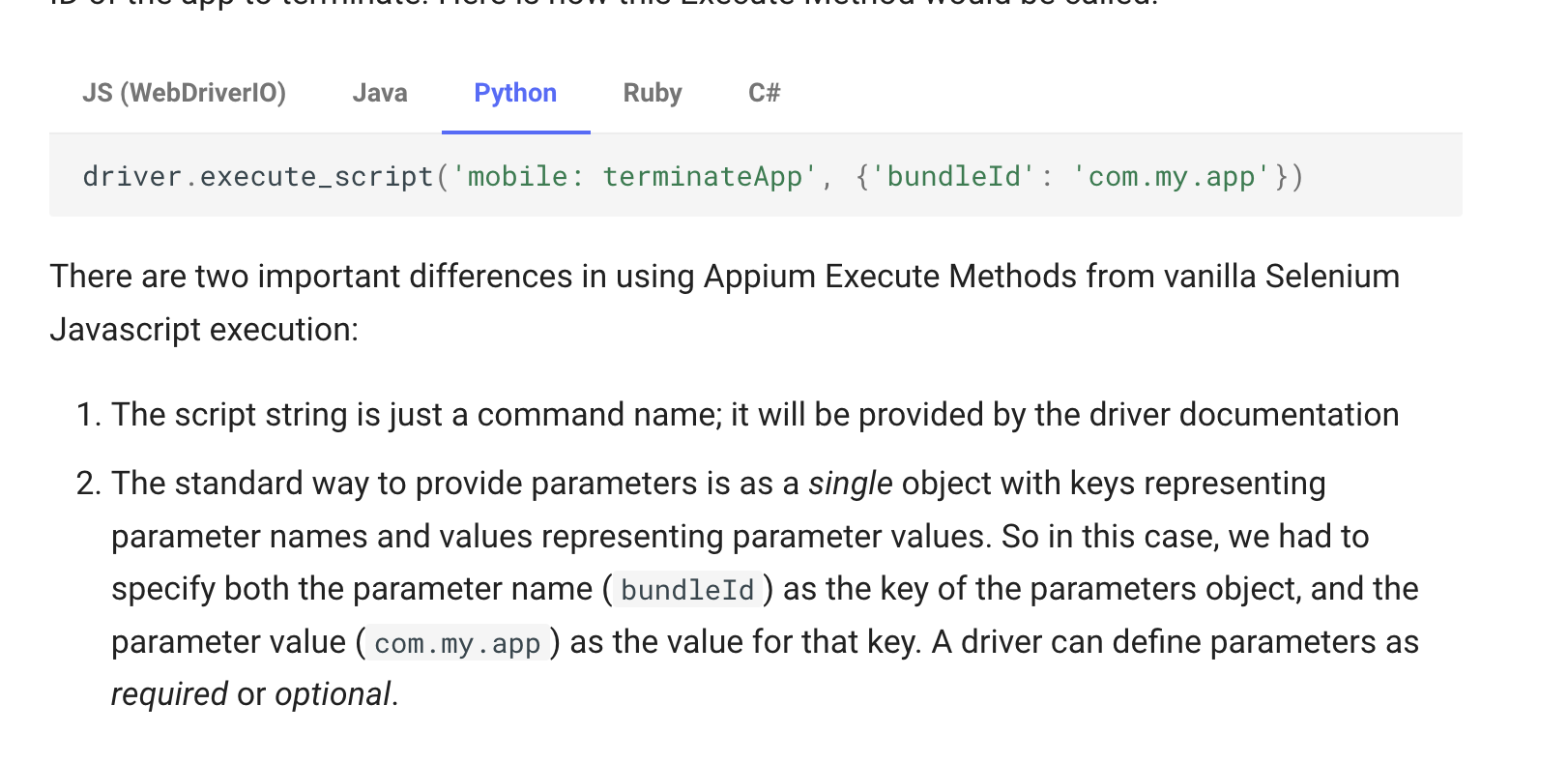
https://appium.io/docs/en/2.0/guides/execute-methods/, NOTE scroll down to the mobile examples for formatting info.
If you send the wrong mobile command or wrong args with the command you should get back a details list of options like so
UnknownCommandError: Unknown mobile command "pressButton". Only shell,execEmuConsoleCommand,dragGesture,flingGesture,doubleClickGesture,longClickGesture,pinchCloseGesture,pinchOpenGesture,swipeGesture,scrollGesture,scrollBackTo,scroll,viewportScreenshot,viewportRect,deepLink,startLogsBroadcast,stopLogsBroadcast,acceptAlert,dismissAlert,batteryInfo,deviceInfo,getDeviceTime,changePermissions,getPermissions,performEditorAction,startScreenStreaming,stopScreenStreaming,getNotifications,listSms,type,sensorSet,deleteFile,clearApp,startActivity,startService,stopService,broadcast,getContexts,installMultipleApks,unlock commands are supported.
Some Examples
https://github.com/search?q=repo%3Asaucelabs-training%2Fdemo-js+mobile%3A&type=code
Press the Home Button
driver.execute_script('mobile:pressButton', {'name': 'home'})
iOS Pressing Buttons by Coordinates
A real world example, finding via Xpath is slow, finding the element then doing some math and tapping it is faster.
// Note MobileBy replaced with AppiumBy
WebElement el = driver.findElement(MobileBy.AccessiblityId("Continue"));
Dimensions dim = el.getSize();
Location loc = el.getLocation();
driver.tap(loc.x + dim.width / 2, loc.y + dim.height / 2, 1000);
Android
https://github.com/appium/io.appium.settings Change wifi, data, animation settings, etc. See README.